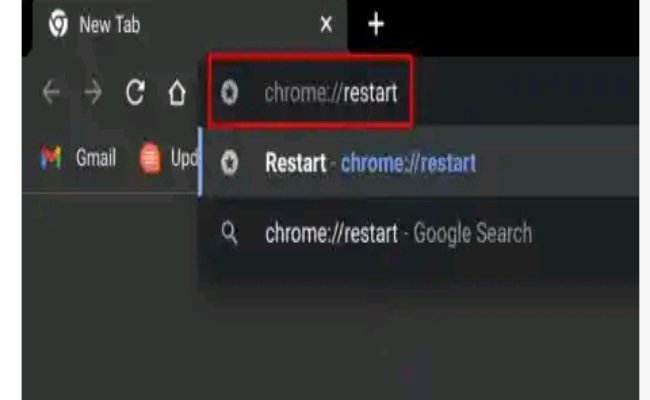
Ever hit that restart button, wondering what digital magic is unfolding behind the scenes? When your Chromebook reboots, it's more than just turning it off and on again. It's a precisely orchestrated ballet of system processes, a digital tune-up that keeps your device zipping along. Understanding what happens during a Chromebook restart (and what to expect) empowers you to troubleshoot confidently, maintain optimal performance, and appreciate the elegant simplicity of Chrome OS.
Consider a restart your Chromebook's version of a quick nap and a fresh start. It's a fundamental tool in your digital arsenal, far more powerful than you might realize for keeping your device responsive and secure.
At a Glance: Your Chromebook's Restart Unpacked
- Fast & Efficient: Chromebooks are designed for rapid restarts, typically under 30 seconds.
- Clears the Decks: A restart flushes temporary data, closes background processes, and frees up RAM, resolving minor glitches.
- Update Integrator: Essential for fully installing Chrome OS and security updates.
- Multiple Methods: From a simple menu click to a forced hard reset, you have options.
- Data Safety: Standard restarts usually won't lose your data, but always save work and back up local files.
- Troubleshooting Powerhouse: Often the first (and most effective) step for resolving system oddities.
The Digital Reset Button: Why a Restart Matters
Think of your Chromebook like a living organism. Over time, it accumulates small inefficiencies: tiny bits of data that get stuck, background processes that don't quite close, or memory that isn't fully reclaimed. These aren't critical errors, but they can gradually lead to sluggishness, apps freezing, or unexpected behavior.
A restart acts as a powerful, yet gentle, reset button. It performs several crucial functions:
- Clearing the Clutter: It wipes away temporary files, unneeded background processes, and frees up system memory (RAM). This is like tidying up a messy desk, making space for new work and allowing your Chromebook to operate more smoothly.
- Applying Updates: Chrome OS is constantly updated with new features, performance improvements, and, critically, security patches. Many of these updates require a restart to be fully integrated into the system. Without a restart, your Chromebook might be running an outdated (and potentially vulnerable) version of its software, even if the files have been downloaded.
- Resolving Minor Glitches: Is an app acting strangely? Is your Wi-Fi connection a bit flaky? Is your trackpad suddenly unresponsive? Often, these are isolated software hiccups. A restart can provide a clean slate, resolving these transient issues without deeper troubleshooting.
- Maintaining Security: Regular restarts ensure that all security protocols are refreshed and any new patches are fully active, protecting your data and privacy from evolving threats.
In essence, restarting your Chromebook is a simple yet vital habit for both immediate troubleshooting and long-term system health.
Decoding the Restart: What Happens Under the Hood
When you initiate a restart, your Chromebook doesn't just cut power. It follows a structured sequence designed to ensure stability, apply changes, and get you back to work quickly.
Phase 1: The Graceful Shutdown (What You Initiate)
Whether you click the shutdown icon or use the power button, the process begins with a graceful shutdown:
- Saving and Closing: Chrome OS sends a signal to all running applications to save any open work and close down. This is why it's always recommended to save your documents and close apps manually before restarting—it gives the system time to handle things properly.
- Logging Out: Your user session is logged out. This is a critical step, especially if you have multiple user profiles on your Chromebook, as it prepares the system for a fresh login.
- Flushing Caches: Temporary data stored in various system caches is cleared. This helps to remove stale information that might be causing minor conflicts.
- Power Down: Once all processes are safely shut down, the Chromebook powers off its components.
Phase 2: The Boot Sequence (What the Chromebook Does)
After a brief pause, your Chromebook springs back to life, initiating its boot sequence:
- Hardware Check (BIOS/UEFI): The device's firmware performs a rapid check of essential hardware components (processor, memory, storage). This is similar to a car's self-test when you turn the key.
- Chrome OS Loading: The core operating system, Chrome OS, begins to load. This involves loading the kernel (the central part of the OS), system services, and background processes necessary for the Chromebook to function.
- User Profile Preparation: As Chrome OS loads, it prepares for user login. It gets your profile ready, including any specific settings, wallpapers, and extensions.
- Displaying the Login Screen: Finally, you're presented with the familiar login screen, ready for you to enter your password or PIN.
The Speed Advantage: Why Chromebooks Are So Fast
One of the most notable aspects of a Chromebook restart is its speed. Unlike traditional operating systems that can take minutes to boot, Chrome OS is designed for efficiency:
- Lightweight OS: Chrome OS itself is relatively small and efficient, requiring fewer resources to load.
- Cloud-First Design: Most user data and applications reside in the cloud. This means the system doesn't have to load massive local programs or scan extensive local file systems during startup.
- Optimized Hardware: Chromebooks are often built with specific hardware configurations that are tightly integrated with Chrome OS, further optimizing boot times.
This means that a typical restart often takes less than 30 seconds, getting you back to productivity almost immediately.
Updates in Action: Ensuring Full Installation
When Chrome OS downloads an update, the files are typically stored in a separate partition. A restart is the trigger for the system to:
- Switch Partitions: The Chromebook effectively switches from running the old version of the OS to booting from the new, updated version that was downloaded.
- Finalize Installation: This process ensures that all new code, security patches, and features are fully integrated and active across the entire system.
- Rollback Safety: If an update fails during the restart (a rare occurrence), Chrome OS is designed to roll back to the previous stable version, preventing your device from becoming unusable.
This robust update mechanism is a cornerstone of Chromebook security and ensures you're always running the most current, protected version.
Your Toolkit: Different Ways to Restart Your Chromebook
Chromebooks offer several methods for restarting, each suited for different situations, from a routine refresh to an emergency reset. To learn how to restart your Chromebook with these methods, keep reading! Learn how to restart your Chromebook
1. The Everyday Refresh: Power Off via the System Tray
This is the most common, safest, and recommended method for a routine restart.
- How it works: This method initiates a graceful shutdown, giving all apps and processes time to close properly before powering down.
- When to use: For daily restarts, after updates, or when you notice minor slowdowns.
- Steps:
- Click the bottom-right corner of your screen (where the Wi-Fi, time, and battery icons reside). This opens the Quick Settings panel.
- Tap the power/shutdown icon (it looks like a circle with a vertical line).
- Your Chromebook will log you out, save data, and power off.
- To turn it back on, simply press the physical power button.
- Tip: You can also sign out manually first (click your profile picture > Sign out), and then use the shutdown option from the sign-in screen.
2. The Physical Reboot: Using the Power Button
Sometimes, interacting with the system tray isn't an option, or you prefer a physical method.
- Brief Press (1 Second):
- How it works: A quick press often brings up a menu with options: Power Off, Sign Out, Lock, and Send Feedback. This is a controlled shutdown option, similar to the system tray method.
- When to use: When you want to choose between shutdown, sign out, or lock, or if the touchpad is unresponsive.
- Long Press (3-5 Seconds):
- How it works: Pressing and holding the power button for about 3 seconds forces a logout and safe power-off. It's a slightly more assertive shutdown than the menu option but still aims for a graceful exit.
- When to use: If your Chromebook is frozen or the screen is unresponsive, and the system tray method isn't accessible.
- To Restart: After it powers off, press the power button again to turn it back on.
3. The Deep Clean: Hard Reset / Powerwash (Factory Reset)
Crucial Distinction: A Hard Reset (often called Powerwash on a Chromebook) is not a typical restart. It's a factory reset that wipes all local data and restores your Chromebook to its original factory settings.
- Use Case: This is an absolute last resort troubleshooting step. Only consider it if your Chromebook is completely unresponsive, severely corrupted, or you're preparing to sell or give it away.
- CAUTION: DATA LOSS AHEAD! This process will erase everything stored locally on your Chromebook, including:
- Files in your Downloads folder.
- Photos, videos, and music not synced to Google Drive.
- Data from Android apps.
- Saved Wi-Fi networks and other local preferences.
- Always back up important local files to Google Drive or an external drive before attempting a Powerwash.
- Steps (Laptops):
- First, sign out of your Google account (Ctrl + Shift + Q twice, or click profile > Sign out).
- From the sign-in screen, press and hold the Refresh key (the circular arrow key above the '3' or '4' on your keyboard) and then press the Power button.
- Your Chromebook will immediately restart and take you through the Powerwash confirmation process.
- Steps (Chrome OS Tablets): Hold the Volume Up and Power buttons together for about 10 seconds.
- Steps (Older Models like Samsung Series 5): Some older Chromebooks have a physical reset pinhole on the bottom. You'll need a paperclip to press it.
4. The Keyboard Cavalry: The Ctrl + Alt + Shift + R Shortcut
This shortcut is a specific method to initiate a Powerwash (factory reset) from the login screen.
- How it works: This is another way to trigger the factory reset process.
- When to use: If you need to perform a Powerwash and want to use a keyboard shortcut, often when troubleshooting deep system issues.
- Steps:
- Sign out of your main Google account (click your profile icon, then select "Sign out").
- Once at the sign-in screen, simultaneously press the Ctrl + Alt + Shift + R keys.
- A small menu will pop up. Click the "Restart" button. You'll then be guided through the Powerwash confirmation steps.
When to Hit the Reset Button: Practical Scenarios
Knowing how to restart is only half the battle; knowing when to do it makes you a savvy Chromebook user.
Troubleshooting Quirks and Glitches
A restart is your first line of defense against many common Chromebook woes. Before you dive into complex troubleshooting, always try a simple restart.
- Sluggish Performance: If your Chromebook feels unusually slow, takes longer to open apps, or web pages load sluggishly.
- Frozen Apps or Tabs: An application or browser tab becomes unresponsive and won't close.
- Unstable Wi-Fi: Your Wi-Fi connection keeps dropping, or websites aren't loading, even though other devices are connected.
- Input Problems: Your trackpad or keyboard suddenly stops responding or behaves erratically.
- General Weirdness: Any unexpected behavior, visual glitches, or things just not feeling "right."
Think of it as the digital equivalent of turning something off and on again – a surprisingly effective solution for many temporary software hiccups.
Embracing Updates: Ensuring Full Installation
Chrome OS updates are a regular occurrence, bringing new features, performance enhancements, and critical security patches.
- "Restart to Update" Prompt: When your Chromebook downloads an update, you'll often see a notification to "Restart to update." Always heed this prompt. A restart is absolutely necessary to transition your system to the new, updated version of Chrome OS.
- Security First: Delaying updates means you might be running on an older, potentially vulnerable version of the OS. Regular restarts ensure you're always protected by the latest security measures.
- Feature Integration: New features or system improvements won't be fully available until the update is installed via a restart.
Routine Maintenance: A Digital Tune-Up
Even without specific issues, regular restarts are good for your Chromebook's long-term health.
- Preventative Measure: Schedule a restart at least once a week, or bi-weekly. This prevents the accumulation of minor glitches and ensures your system remains responsive.
- Cleans Memory: Regular restarts keep your RAM fresh, preventing "memory leaks" (where apps slowly consume more memory than they should) from building up.
- Optimal Performance: A clean slate ensures your Chromebook is always running at its best, ready for whatever tasks you throw at it.
Pre-Emptive Measures: Before Big Moments
Sometimes, it's wise to restart proactively.
- Before Travel: Restart your Chromebook before packing it for a trip. This ensures it powers on smoothly when you reach your destination and helps avoid unexpected issues when you're far from home.
- Before Presentations or Important Meetings: To ensure critical apps launch correctly and performance is snappy, give your Chromebook a fresh start before a high-stakes moment.
- Switching Locations/Networks: A restart can help your Chromebook better adapt to a new network environment, such as moving from your home Wi-Fi to an office network.
Navigating the Restart: What to Expect Post-Reboot
After you've initiated a restart, here's what typically unfolds and how to prepare.
Speed is Key
As mentioned, one of the best parts about a Chromebook restart is its speed. You can expect:
- Rapid Boot-Up: From pressing the power button to seeing the login screen, expect the process to take well under a minute, often closer to 15-20 seconds on newer devices.
- Quick Readiness: Once you log in, your desktop should appear quickly, and most system resources will be available almost instantly.
The Sign-In Screen Awaits
After the boot sequence, you'll always be presented with the sign-in screen.
- Password/PIN Required: You'll need to enter your Google account password or PIN to access your profile. This is a security feature, ensuring only authorized users can access the device after a reboot.
- Multiple Profiles: If you have multiple user profiles, you'll see options to choose which profile to log into.
App & Tab Behavior: A Quick Return?
What happens to your open applications and browser tabs depends on how you restart and your Chromebook's settings.
- Browser Tabs (Chrome):
- If you signed out gracefully before restarting, your browser tabs are usually synced through your Google account and will restore when you open Chrome again.
- If you force-restarted (e.g., long-press power button due to a freeze) without signing out, Chrome OS is often smart enough to offer to restore your tabs the next time you open the browser.
- Best Practice: Always sign out or close tabs you absolutely need before restarting.
- Android Apps:
- Android apps typically close completely during a restart. You'll need to reopen them manually after logging back in.
- Some Android apps might automatically re-login if you've allowed them to save credentials, but their state (e.g., an unfinished game level) might be lost.
- Linux Apps:
- Like Android apps, Linux applications will close during a restart. You'll need to reopen them.
- Web Apps/PWAs:
- These behave much like browser tabs. If they were open in a dedicated window, they will close and need to be reopened. Their state might be restored if the web app itself supports it.
Update Confirmation
If you restarted specifically to install a Chrome OS update, you might see a brief notification or a slightly different boot screen indicating that an update was installed. You can also verify the OS version in your settings.
Before You Restart: Safeguarding Your Data
While Chromebooks are remarkably resilient, a little preparation goes a long way to ensure a seamless restart, especially in emergency situations.
The Golden Rules for a Smooth Restart
- Close Apps and Save Your Work: This is paramount. Before any restart (especially a controlled one), make sure all documents are saved, and any open applications are closed. This allows the system to shut down gracefully and prevents data corruption or loss.
- Sign Out to Sync Browser Data: Clicking your profile picture and selecting "Sign out" before restarting ensures that Chrome has a chance to fully sync your open tabs, browser history, and extensions with your Google account. This dramatically increases the chances of your tabs restoring perfectly after you log back in.
- Eject External Storage: If you have an SD card, USB drive, or external hard drive connected, always eject it safely before restarting. Failure to do so can corrupt the data on the external device. Go to the Files app, locate the drive, and click the "eject" icon next to it.
- Back Up Local Files: Chromebooks are cloud-first, but many users store files in the "Downloads" folder or other local directories. These files are not automatically synced to Google Drive. Before any restart, particularly a hard reset (Powerwash), ensure any critical local files are backed up to Google Drive, another cloud service, or an external drive.
Understanding Emergency Restarts (The "Oh No!" Moments)
Sometimes, your Chromebook freezes solid, and you have no choice but a hard shutdown (e.g., holding the power button). In these less-than-ideal scenarios, here's what you might experience:
- Lost Chrome Tabs: If Chrome couldn't save its state, you might lose your open tabs. While Chrome often attempts to restore, it's not guaranteed in a forced shutdown.
- Unsaved Text: Any text you typed into web forms, documents, or emails that wasn't auto-saved or manually saved will likely be lost.
- Corrupted External Drives: If an external drive was writing data when the power was cut, its file system could become corrupted, making data inaccessible.
- Android App Crashes: Android apps that were mid-task might crash or lose their state when reopened.
- Update Rollback: If a system update was in the process of installing during a crash, Chrome OS is designed to roll back to the previous stable version, meaning the update won't be fully applied. You'll need to restart again to install it properly.
By following the "Golden Rules," you minimize these risks and ensure that even if an emergency restart is needed, your valuable data remains safe.
Troubleshooting Beyond a Simple Restart
If your Chromebook continues to misbehave even after several restarts, it's time to dig a little deeper.
- Perform a Full Shutdown and Wait: Instead of a quick restart, try completely shutting down your Chromebook using the system tray or a 3-second power button press. Then, wait for at least 30 seconds (or even a minute) before powering it back on. This ensures all power is drained from components and can sometimes resolve deeper issues that a quick restart misses.
- Consider a Hard Reset (Powerwash) – As a Last Resort: If you've tried everything else, and your Chromebook is still problematic (and you've backed up all local data!), a Powerwash can often resolve persistent software corruption. Remember, this completely resets your device.
- Boot into Guest Mode: Does the issue persist in Guest Mode? If not, the problem might be related to your specific user profile (e.g., a buggy extension, a corrupted setting). This helps narrow down the culprit.
- Review System Logs: For advanced users, pressing Alt + T + O will open the system diagnostics page where you can find detailed logs. This information can sometimes point to specific error messages or failing components.
- Check for Chrome OS Updates (Again): Sometimes, a bug you're experiencing has already been patched in a newer version of Chrome OS. Go to Settings > About Chrome OS > Check for updates.
- Test External Input Devices: If your keyboard or touchpad is unresponsive after a restart, try connecting an external USB keyboard or mouse. If they work, it suggests a hardware issue with your built-in peripherals.
- Contact Official Support: If you've exhausted all self-help options, reaching out to your Chromebook's manufacturer or Google support is the next logical step. Provide them with as much detail as possible about the issue and the troubleshooting steps you've already taken.
Keep Your Chromebook Zipping Along
Mastering the art of the Chromebook restart is more than just knowing where the button is. It's about understanding the subtle mechanics of your device, appreciating its efficiency, and leveraging a simple action for maximum impact. By regularly restarting, especially after updates or when facing minor glitches, you're not just fixing problems; you're actively contributing to the longevity, security, and snappiness of your digital companion. Keep it clean, keep it updated, and keep it restarting—your Chromebook will thank you for it.