Chromebooks are celebrated for their lightning-fast performance and refreshing simplicity, making them a favorite for everyday tasks like browsing, streaming, and even light gaming. This speed extends beyond daily use; starting up or restarting a Chromebook is often as quick as waking your smartphone. While you won't need to restart it as frequently as some other operating systems, knowing how to perform a quick reboot can be incredibly helpful when you encounter minor hiccups like slowdowns, unresponsive apps, or connectivity issues.
In this comprehensive guide, we'll walk you through every method for restarting your Chromebook, from the gentlest software reboots to force restarting a frozen device. We’ll also delve into why and when a restart is your best friend, helping you keep your Chromebook running smoothly.
Understanding Why and When Your Chromebook Might Need a Reboot
Even the most streamlined systems can benefit from a fresh start. Restarting your Chromebook isn't just a troubleshooting step; it's a way to clear out temporary files, resolve minor software conflicts, and ensure all processes are running optimally. Think of it as giving your device a quick, refreshing nap! If you're curious about the specific scenarios where a reboot is most effective and the deeper reasons behind its utility, you'll want to explore Why and when to restart Chromebooks. This resource will provide a clearer picture of when to reach for that restart button.
Navigating the Standard Ways to Restart Your Chromebook
When your Chromebook is behaving normally but just needs a quick refresh, there are several straightforward methods to restart it. These standard procedures are designed for ease of use and cover most situations where you consciously decide to reboot your device. For a complete walkthrough of these gentle restart options, including visual aids and best practices, check out our guide on Standard Chromebook Restart Procedures.
Restarting via Quick Settings: The Easiest Option
This is arguably the most common and user-friendly way to restart your Chromebook. The Quick Settings panel is a hub for various essential controls, including your power options.
Here’s how to do it:
- Open Quick Settings: Click on the time display located in the bottom-right corner of your screen.
- Access Power Options: A menu will pop up; locate and click on the Power button icon.
- Select Restart: From the expanded power menu, simply choose "Restart." Your Chromebook will then initiate its reboot sequence.
Using the Physical Power Button for a Controlled Reboot
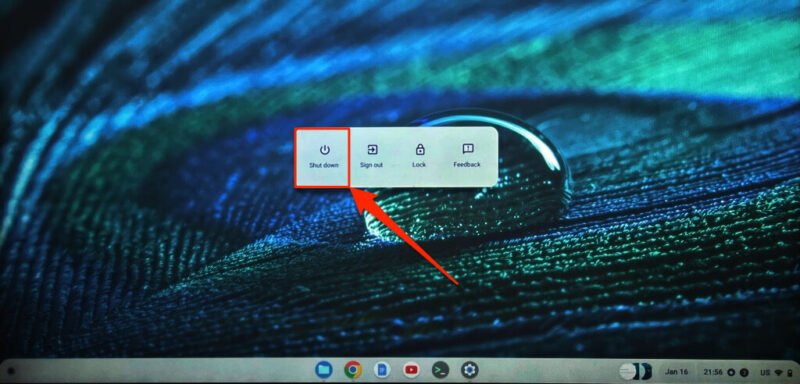
Similar to how you'd interact with a smartphone, your Chromebook's physical power button offers another way to access power-related options. This button is typically found either on your keyboard or on the side chassis of the device.
Follow these steps:
- Press and Hold: Gently press and hold the power button for a little over a second.
- Reveal Options: Your screen will dim slightly, and a menu with options like "Shut down" will appear.
- Power Off and On: Select "Shut down" to turn off your device completely. Once it's fully off, press the power button again to restart it.
The Chrome URL Trick: A Quick Browser Refresh
Did you know you can initiate a sort of restart right from your Chrome browser? This method is unique because it primarily reboots the Chrome shell itself, much like when you enable a Chrome flag. It's not a full system restart, but it can be handy for browser-specific issues.
Here's how to try it:
- Launch Chrome: Open your Google Chrome browser.
- Type the URL: In the address bar, type
chrome://restart. - Press Enter: Hit the Enter key, and Chrome will quickly reboot its processes.
What to Do When Your Chromebook Freezes: Force Restart
Sometimes, your Chromebook might become unresponsive. The screen could go black, or the keyboard and touchpad might stop working entirely. In these frustrating situations, a standard restart won't cut it, and you'll need to perform a force restart. This method is designed to safely power down and reboot a frozen device, giving it a much-needed jolt back to life. For a detailed guide on how to handle these scenarios effectively, make sure to read How to force restart a Chromebook.
To force restart your Chromebook:
- Press and Hold Power: Simply press and hold the power button for at least 5 to 10 seconds. Keep holding until the screen completely turns off.
- Release and Restart: Once the screen is dark, release the power button. Wait a moment, then press the power button again to power on your Chromebook.
Unlocking Solutions: How a Simple Restart Can Fix Chromebook Issues
It’s truly remarkable how many common computer problems can be resolved with nothing more than a simple restart. From apps that refuse to load, internet connectivity glitches, to general system sluggishness, a quick reboot often clears the slate and brings everything back to normal. A restart flushes temporary memory, reinitializes hardware, and reloads system processes cleanly, often resolving transient software bugs that cause minor annoyances. To dive deeper into the specific issues a restart can resolve and to understand the underlying mechanisms, exploring Fix Chromebook issues with a restart will equip you with valuable knowledge.
Peeking Behind the Curtain: What Happens When Your Chromebook Restarts
While a restart seems like a simple action, a lot goes on behind the scenes to get your Chromebook running optimally again. When you initiate a restart, the operating system performs a graceful shutdown, closes all open applications, clears out temporary data, and then reboots. This entire process is designed to refresh the system's memory, re-establish connections with hardware components, and load all software from a clean state. It’s a thorough reset without deleting your personal files or settings. To gain a deeper understanding of this process and what to expect during a restart, including boot times and system checks, our dedicated pillar on What happens during a Chromebook restart offers an insightful look.
Mastering the various ways to restart your Chromebook is a fundamental skill for any owner. Whether you're dealing with a minor lag or a completely frozen screen, knowing which method to use empowers you to resolve issues quickly and keep your device performing at its best. Keep these techniques in your toolkit, and your Chromebook will thank you for it!